Browse and filter
Page through records, sort columns, and combine filter conditions. Inspect long values in the row inspector.
Open a local SQLite file, inspect its tables, filter rows and run SQL in plainDB. Your file stays on your computer; you do not need to upload it to an online viewer or set up a database server.
New to database tools? Download a practice database and try one reviewed edit.
Save a SQLite connection with the path to your database. Browse tables and views, sort and filter rows, or open a SQL tab to ask a more specific question.
Use a read-only connection when you want to inspect data without editing it. For important files, work on a backup made while the application that owns the database is closed, or use SQLite’s backup tools.
Read the SQLite guide ↗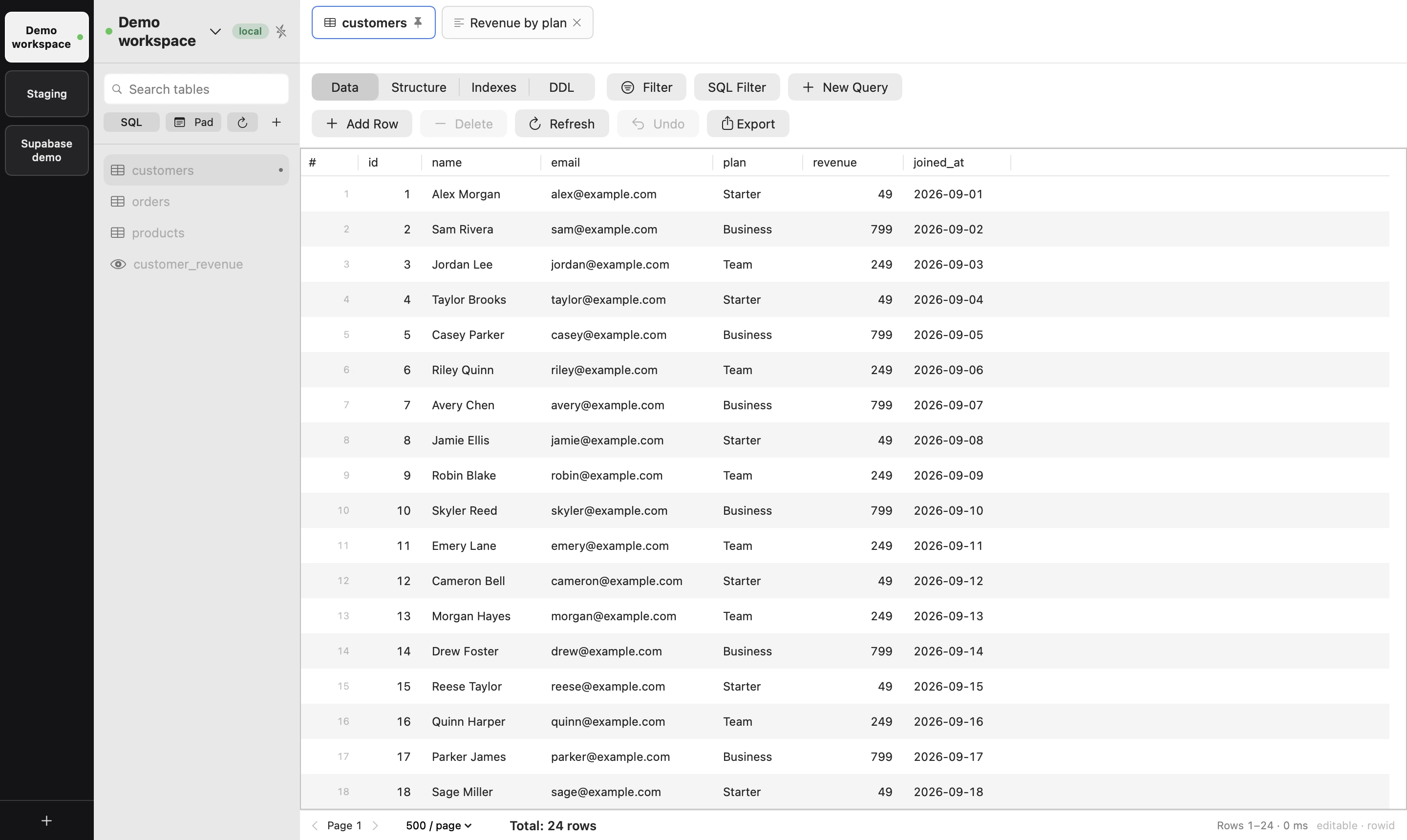
Page through records, sort columns, and combine filter conditions. Inspect long values in the row inspector.
View columns, indexes, and table DDL before writing queries or making changes.
Run statements, read their results, and return to saved queries and execution history.
Stage cell changes and review generated SQL before applying. Editable rows need a reliable identifier.
A standard, unencrypted SQLite database can use extensions such as .sqlite, .sqlite3, or .db. The extension alone does not prove that a file is SQLite. plainDB connects to the local file; it does not require a database server.
Another process may be writing to it. Close the owning application if appropriate, then retry. Do not delete a -wal or -shm file to resolve a lock: those files can be part of the active database state. See SQLite’s write-ahead log documentation for the details.
Both builds support CSV, TSV, JSON, Markdown, and SQL INSERT exports. Both platforms can export a whole filtered table in batches. Check the export scope before using a file as a complete copy of your data.
A native Mac app and a dedicated Windows build, with PostgreSQL and MySQL alongside SQLite.